

SITE HELP

In KA Bookings, Administrators / Hosts / Guests will need to manually submit paid funds. Currently, Stripe is the payment method that is implemented.

How The Payouts Works?

The admin dashboard presents an introductory section (Homepage) from where the site administrator can have an overview of what happens on his site. The most important information such as new listings or new reservations is immediately visible and ready to be managed.
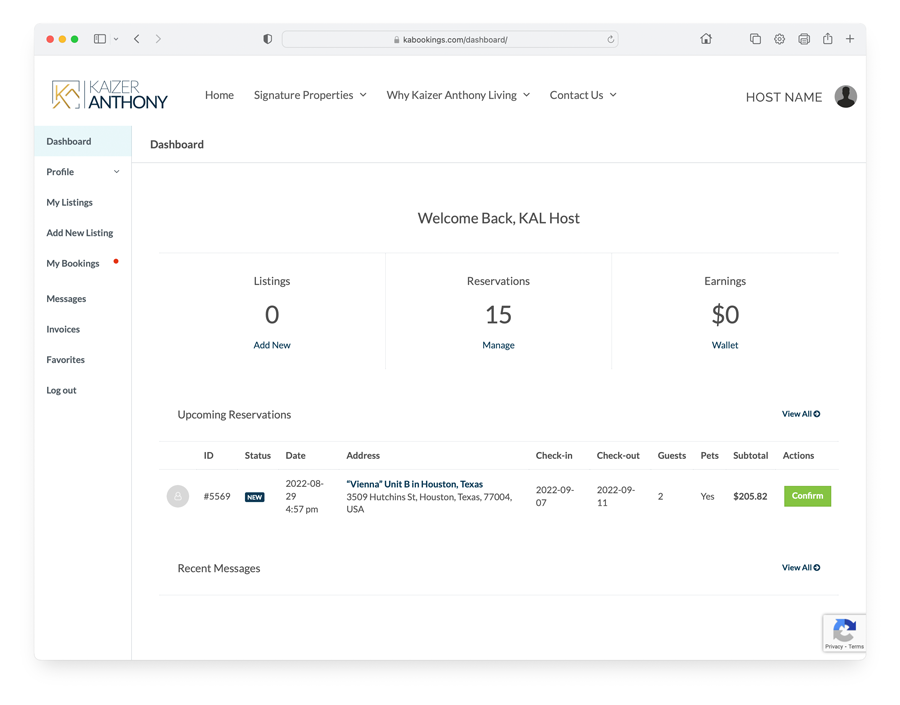
KABookings is able to accept payments, deposits, and service fees. As a site administrator, you can set how much initial payment you want the client to deposit while booking.

KABookings offers the following options:

  • Set a percentage: you can set a percentage that the customer has to pay at the checkout
  • Full payment: you will get the full reservation payment at the checkout
  • Only the security deposit: you will get only the security deposit that has been set up on the property price options
  • Only the service fee: you will get only the service fee
  • The service fee + the security deposit: you will get the security deposit and the service fee
  • No upfront, take full payment locally: the user won’t pay anything on the website, but only locally to the host

Locate the Pricing tab in the Listing Details (when creating or adding a New Listing) panel to add all the information about prices.
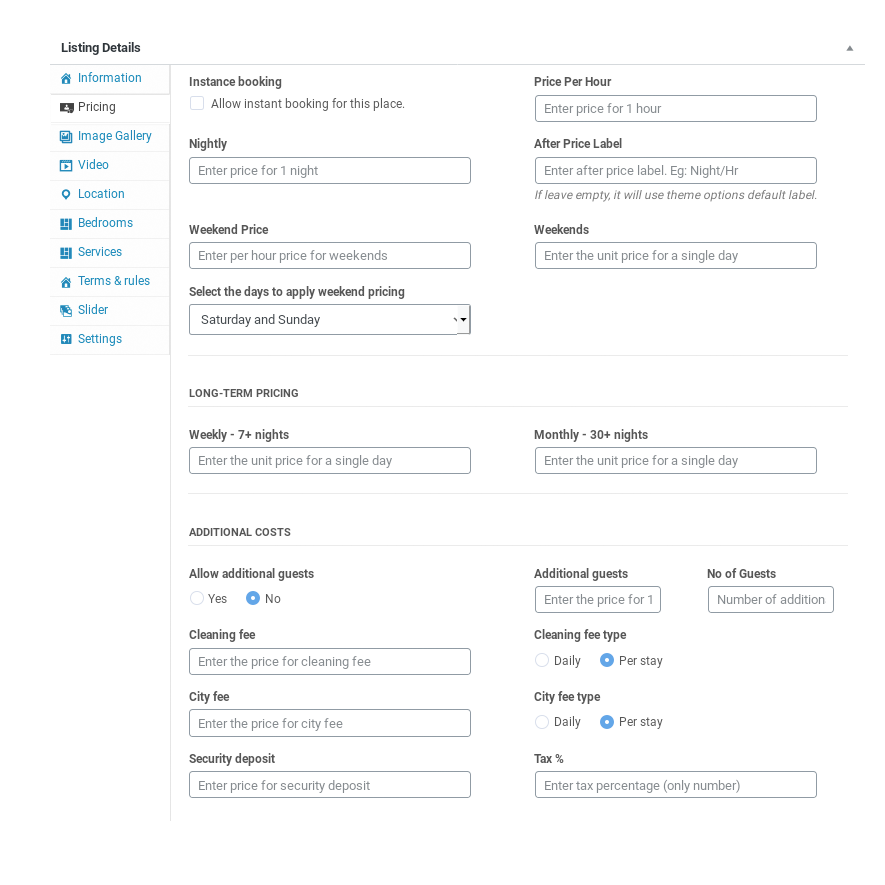
  • Instant booking: check this option if you want to allow instant booking for this place
  • Prices
    • Price Per Hour: enter the price for 1 hour
    • Nightly: enter the price for 1 night
    • After Price Label: enter the after price label. For instance /hr
    • Weekend price: enter per hour price for weekends
    • Weekends: enter the price for 1 night during the weekend time
    • Select the days to apply weekend pricing: select from the drop-down menu on which days you want to apply the weekend price
  • Long-term Pricing
    • Weekly – 7+ nights: enter the price for 1 night
    • Monthly – 30+ nights: enter the price for 1 night
  • Addition Costs
    • Allow additional guests: select Yes or No
    • Additional guests: enter the price for 1 additional guest
    • No of Guests: Number of addition
    • Cleaning fee: enter the cleaning fee price
    • Cleaning fee type: select if the cleaning price has to be calculated daily or per stay
    • City fee: enter the city fee price
    • City fee type: select if the city fee price has to be calculated daily or per stay
    • Security deposit: enter the security deposit price
    • Tax %: enter the percentage tax to apply on the listing (only number)

Locate the Image Gallery tab in the Listing Details panel to upload the listing gallery images.
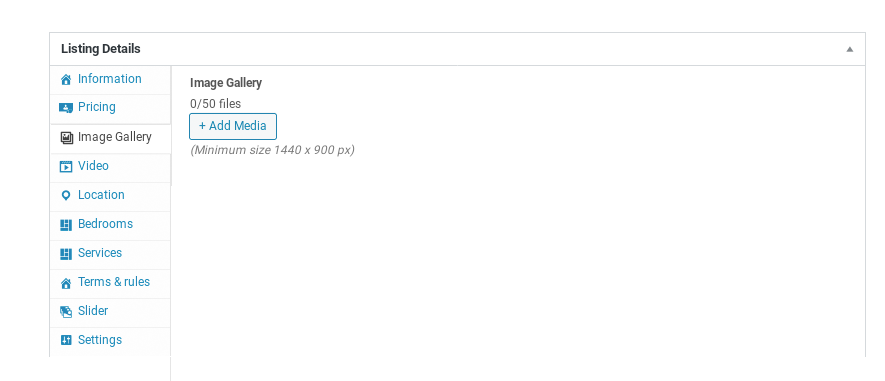


  1. Images Uploader: Click on + Add Media button inside the Property Gallery box displayed in the screenshot above. This will open the WordPress Media Uploader. You can use that to upload an image from your computer or use an existing image from your media library.
  2. After having uploaded your images then you can re-order with a simple drag and drop.

IMPORTANT: The images must be at least 1440 pixels wide or they will not upload and you may get an error.


Lorem ipsum dolor sit amet, consectetur adipiscing elit. Morbi est quam, volutpat et arcu eu, pharetra congue augue. Integer vel nibh eu eros interdum commodo. Vivamus finibus fringilla libero, id consectetur purus sollicitudin vel. Proin dapibus ante et pharetra luctus. Ut lacinia ante ut nunc pellentesque auctor. Proin laoreet erat sed ornare molestie. Fusce vehicula ut nulla facilisis vulputate. Quisque vel purus ac lectus tempus viverra. Maecenas at sem at erat pellentesque hendrerit nec in massa. Vestibulum nec lacinia dui, a congue ex. Vivamus ac ultricies mauris. Suspendisse commodo tempus suscipit. Nunc malesuada eu tortor in hendrerit.

Lorem ipsum dolor sit amet, consectetur adipiscing elit. Morbi est quam, volutpat et arcu eu, pharetra congue augue. Integer vel nibh eu eros interdum commodo. Vivamus finibus fringilla libero, id consectetur purus sollicitudin vel. Proin dapibus ante et pharetra luctus. Ut lacinia ante ut nunc pellentesque auctor. Proin laoreet erat sed ornare molestie. Fusce vehicula ut nulla facilisis vulputate. Quisque vel purus ac lectus tempus viverra. Maecenas at sem at erat pellentesque hendrerit nec in massa. Vestibulum nec lacinia dui, a congue ex. Vivamus ac ultricies mauris. Suspendisse commodo tempus suscipit. Nunc malesuada eu tortor in hendrerit.

Adding and Editing Listings

The admin dashboard presents an introductory section (Homepage) from where the site administrator can have an overview of what happens on his site. The most important information such as new listings or new reservations is immediately visible and ready to be managed.

KABookings is able to accept payments, deposits, and service fees. As a site administrator, you can set how much initial payment you want the client to deposit while booking.

KABookings offers the following options:

  • Set a percentage: you can set a percentage that the customer has to pay at the checkout
  • Full payment: you will get the full reservation payment at the checkout
  • Only the security deposit: you will get only the security deposit that has been set up on the property price options
  • Only the service fee: you will get only the service fee
  • The service fee + the security deposit: you will get the security deposit and the service fee
  • No upfront, take full payment locally: the user won’t pay anything on the website, but only locally to the host

*** Please note: If you set a partial payment, such as only service fees or deposit only, the balance must be paid locally to the host

Locate the Pricing tab in the Listing Details (when creating or adding a New Listing) panel to add all the information about prices.

  • Instant booking: check this option if you want to allow instant booking for this place
  • Prices
    • Price Per Hour: enter the price for 1 hour
    • Nightly: enter the price for 1 night
    • After Price Label: enter the after price label. For instance /hr
    • Weekend price: enter per hour price for weekends
    • Weekends: enter the price for 1 night during the weekend time
    • Select the days to apply weekend pricing: select from the drop-down menu on which days you want to apply the weekend price
  • Long-term Pricing
    • Weekly – 7+ nights: enter the price for 1 night
    • Monthly – 30+ nights: enter the price for 1 night
  • Addition Costs
    • Allow additional guests: select Yes or No
    • Additional guests: enter the price for 1 additional guest
    • No of Guests: Number of addition
    • Cleaning fee: enter the cleaning fee price
    • Cleaning fee type: select if the cleaning price has to be calculated daily or per stay
    • City fee: enter the city fee price
    • City fee type: select if the city fee price has to be calculated daily or per stay
    • Security deposit: enter the security deposit price
    • Tax %: enter the percentage tax to apply on the listing (only number)

Locate the Image Gallery tab in the Listing Details panel to upload the listing gallery images.


  1. Images Uploader: Click on + Add Media button inside the Property Gallery box displayed in the screenshot above. This will open the WordPress Media Uploader. You can use that to upload an image from your computer or use an existing image from your media library.
  2. After having uploaded your images then you can re-order with a simple drag and drop.

IMPORTANT: The images must be at least 1440 pixels wide or they will not upload and you may get an error.


Lorem ipsum dolor sit amet, consectetur adipiscing elit. Morbi est quam, volutpat et arcu eu, pharetra congue augue. Integer vel nibh eu eros interdum commodo. Vivamus finibus fringilla libero, id consectetur purus sollicitudin vel. Proin dapibus ante et pharetra luctus. Ut lacinia ante ut nunc pellentesque auctor. Proin laoreet erat sed ornare molestie. Fusce vehicula ut nulla facilisis vulputate. Quisque vel purus ac lectus tempus viverra. Maecenas at sem at erat pellentesque hendrerit nec in massa. Vestibulum nec lacinia dui, a congue ex. Vivamus ac ultricies mauris. Suspendisse commodo tempus suscipit. Nunc malesuada eu tortor in hendrerit.

Lorem ipsum dolor sit amet, consectetur adipiscing elit. Morbi est quam, volutpat et arcu eu, pharetra congue augue. Integer vel nibh eu eros interdum commodo. Vivamus finibus fringilla libero, id consectetur purus sollicitudin vel. Proin dapibus ante et pharetra luctus. Ut lacinia ante ut nunc pellentesque auctor. Proin laoreet erat sed ornare molestie. Fusce vehicula ut nulla facilisis vulputate. Quisque vel purus ac lectus tempus viverra. Maecenas at sem at erat pellentesque hendrerit nec in massa. Vestibulum nec lacinia dui, a congue ex. Vivamus ac ultricies mauris. Suspendisse commodo tempus suscipit. Nunc malesuada eu tortor in hendrerit.

Booking Questions

Change of plans? No problem. As long your reservation status is still Pending, you can withdraw your request and send a new one: Just go to your message thread with the Host and select  Withdraw request, or you can go to Trips and cancel a pending trip request. 

After that, simply send a new request with your updated details. 

After you’ve canceled or withdrawn the request, you can then send a new request with your changed dates or number of guests.

Your plans have changed and now you need to cancel your reservation. No problem. You can go to your Trips to cancel or make changes to your reservation.

To cancel a reservation:

  1. Go to Trips and select the trip you want to cancel.
  2. Click Show more trip plans, then click Show Details.
  3. Click Change or Cancel.
  4. Click Cancel Reservation.

If you’re experiencing an issue during your stay, you can ask your Host to fix it, request a partial refund, or request to cancel your reservation for a full refund. It’s important to submit your request within 24 hours of noticing the issue, and your Host will have 1 hour to respond.

Lorem ipsum dolor sit amet, consectetur adipiscing elit. Morbi est quam, volutpat et arcu eu, pharetra congue augue. Integer vel nibh eu eros interdum commodo. Vivamus finibus fringilla libero, id consectetur purus sollicitudin vel. Proin dapibus ante et pharetra luctus. Ut lacinia ante ut nunc pellentesque auctor. Proin laoreet erat sed ornare molestie. Fusce vehicula ut nulla facilisis vulputate. Quisque vel purus ac lectus tempus viverra. Maecenas at sem at erat pellentesque hendrerit nec in massa. Vestibulum nec lacinia dui, a congue ex. Vivamus ac ultricies mauris. Suspendisse commodo tempus suscipit. Nunc malesuada eu tortor in hendrerit.

Help on your reservations

Lorem ipsum dolor sit amet, consectetur adipiscing elit. Morbi est quam, volutpat et arcu eu, pharetra congue augue. Integer vel nibh eu eros interdum commodo. Vivamus finibus fringilla libero, id consectetur purus sollicitudin vel. Proin dapibus ante et pharetra luctus. Ut lacinia ante ut nunc pellentesque auctor. Proin laoreet erat sed ornare molestie. Fusce vehicula ut nulla facilisis vulputate. Quisque vel purus ac lectus tempus viverra. Maecenas at sem at erat pellentesque hendrerit nec in massa. Vestibulum nec lacinia dui, a congue ex. Vivamus ac ultricies mauris. Suspendisse commodo tempus suscipit. Nunc malesuada eu tortor in hendrerit.

If you left something behind at at a place you stayed, message your host directly for help. If you need to have an item sent to you, you can send your host money to cover the shipping cost directly through our Resolution Center.

Haven’t heard back? Most Hosts respond within a few hours, but time zones and lack of internet access might slow things down. In the meantime, try reaching out to other Hosts in the area. Just be careful not to send more than one trip request for the same dates to ensure you don’t end up double booked.

Lorem ipsum dolor sit amet, consectetur adipiscing elit. Morbi est quam, volutpat et arcu eu, pharetra congue augue. Integer vel nibh eu eros interdum commodo. Vivamus finibus fringilla libero, id consectetur purus sollicitudin vel. Proin dapibus ante et pharetra luctus. Ut lacinia ante ut nunc pellentesque auctor. Proin laoreet erat sed ornare molestie. Fusce vehicula ut nulla facilisis vulputate. Quisque vel purus ac lectus tempus viverra. Maecenas at sem at erat pellentesque hendrerit nec in massa. Vestibulum nec lacinia dui, a congue ex. Vivamus ac ultricies mauris. Suspendisse commodo tempus suscipit. Nunc malesuada eu tortor in hendrerit.

Search

October 2026

  • M
  • T
  • W
  • T
  • F
  • S
  • S
  • 1
  • 2
  • 3
  • 4
  • 5
  • 6
  • 7
  • 8
  • 9
  • 10
  • 11
  • 12
  • 13
  • 14
  • 15
  • 16
  • 17
  • 18
  • 19
  • 20
  • 21
  • 22
  • 23
  • 24
  • 25
  • 26
  • 27
  • 28
  • 29
  • 30
  • 31

November 2026

  • M
  • T
  • W
  • T
  • F
  • S
  • S
  • 1
  • 2
  • 3
  • 4
  • 5
  • 6
  • 7
  • 8
  • 9
  • 10
  • 11
  • 12
  • 13
  • 14
  • 15
  • 16
  • 17
  • 18
  • 19
  • 20
  • 21
  • 22
  • 23
  • 24
  • 25
  • 26
  • 27
  • 28
  • 29
  • 30
0 Adults
0 Children
Pets
Size
Price
Amenities
Facilities

Compare listings

Compare

Compare experiences

Compare